Most people use Claude like a slightly smarter Google search box — short, context‑free questions in, half‑useful answers out. Then they wonder why it isn’t changing their actual workload. If you instead treat Claude like a junior coworker who can read your docs, think with you, and draft on your behalf, you’ll ship more real work in less time.

This guide shows you how to do that with concrete examples you can copy into your next work session with Claude.
Meet Claude: more than a chatbot
Claude is Anthropic’s AI assistant, designed to be helpful, harmless, and honest. Instead of just trying to sound smart, it’s trained with a “Constitution” of principles that push it away from toxic content and shady requests, and toward clear, transparent answers.
You can use Claude in a browser, on desktop, or on your phone.
Wherever you open it, the core idea is the same: it’s a general-purpose assistant that can write, summarize, analyze, code, and tutor, all in one place. Think of it less as a magic box, and more as a junior teammate who is extremely fast but needs your direction.
You can open the same Claude “brain” in a few different places, depending on what you’re doing:
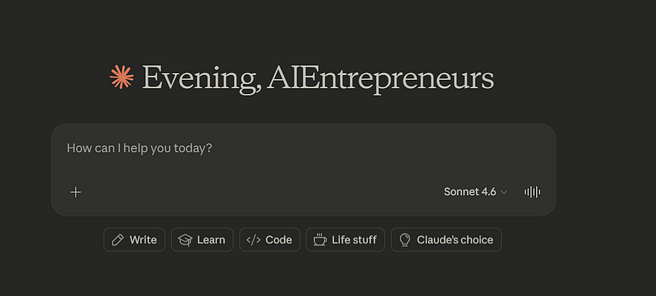
- Claude.ai (web, desktop, mobile) for everyday chats, writing, research, and analysis.
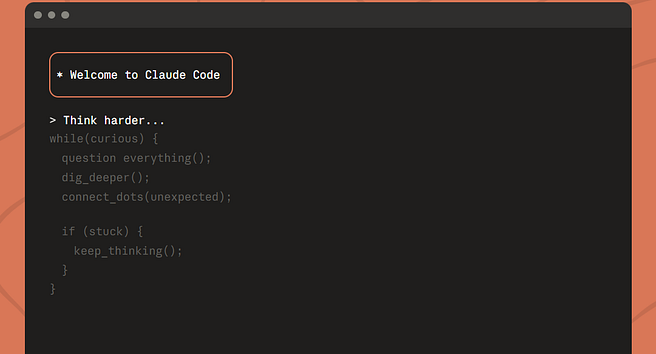
- Claude Code to edit files, run commands, and get coding help right on your desktop.
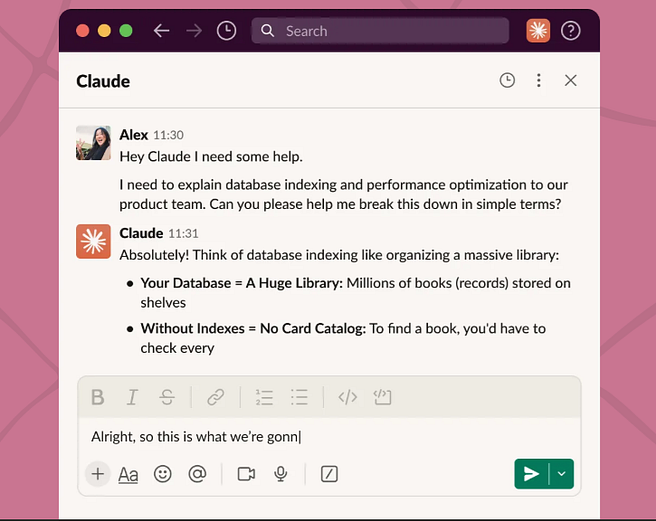
- Claude and Slack to answer questions and search across your team’s channels and shared files.
- Claude for Excel to analyze, debug, and build models directly inside your spreadsheets.
Most of us still treat tools like Claude the way we treat Google: quick questions, no context, and lots of rework. This guide is about breaking that habit and turning Claude into your thinking partner, not a search bar.
Talk to Claude like a coworker, not a search bar
The easiest way to get stuck with generic AI answers is to type prompts you’d put into search. Claude works better if you talk to it like a real person who just joined your project.
A simple three-part pattern helps:
- Setting the stage: Who are you, what are you working on, and for whom?
- Defining the task: What do you actually want Claude to do — write, analyze, brainstorm, critique, rewrite?
- Specifying rules: What tone, format, or examples should it follow?
Here’s a concrete “don’t do this → do this” example for email:
“Write an email about the project delay.”
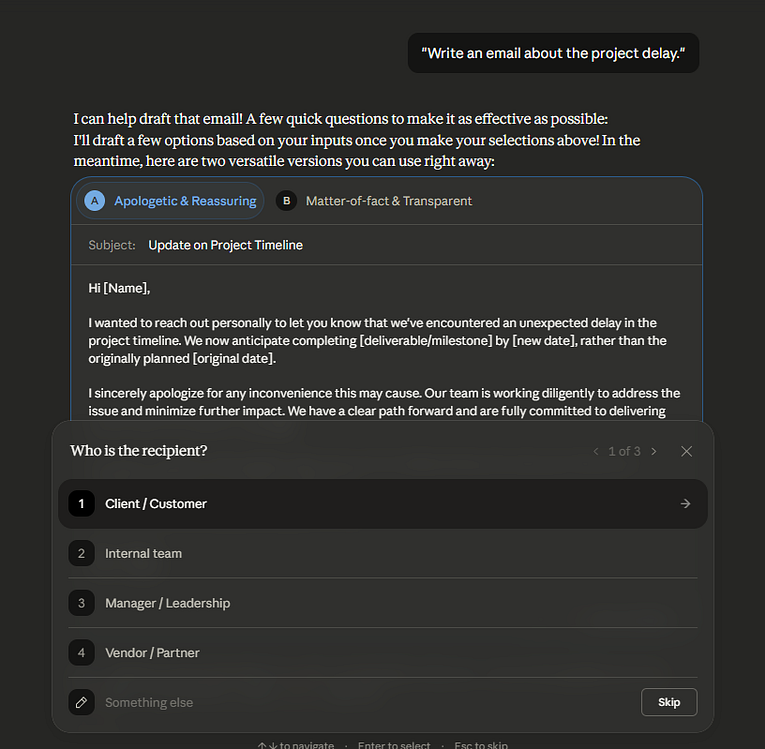
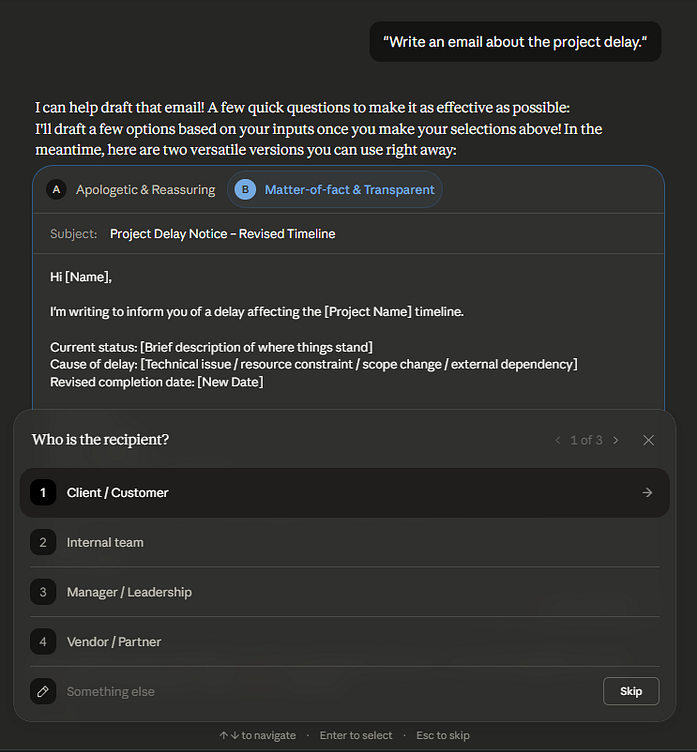
Try:
“I’m Y, the project manager at a software company SOFCO.
Our enterprise client’s integration will be delayed by two weeks, and it’s the second delay.
Write an email to the client X explaining the situation. Keep it professional but apologetic, and suggest one concrete step we’ll take to avoid more delays.”
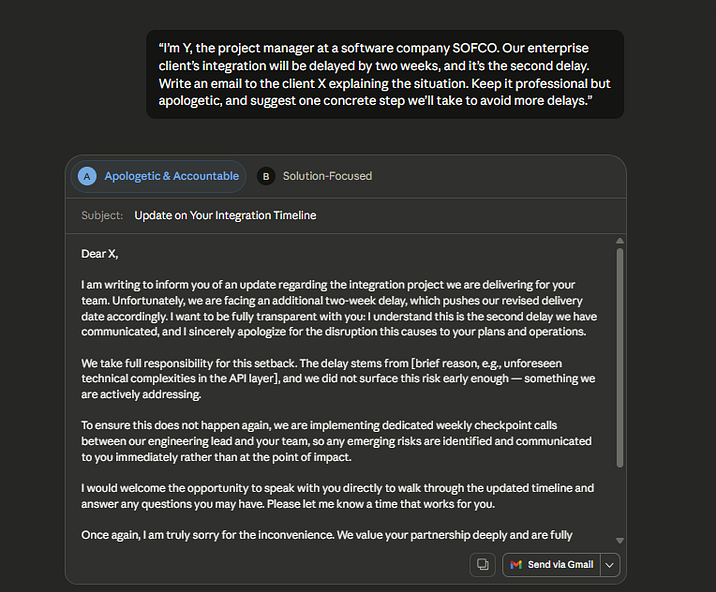

Same task, completely different output quality. You can use this pattern for anything: blog drafts, performance reviews, product specs, or personal planning.
Use context: upload your real work, not just your questions
Claude becomes much more useful when you stop asking in the abstract and start feeding it your actual documents. You’re not just “asking questions”; you’re giving Claude the same context a human colleague would need to help you.
You can upload:
- PDFs and DOCX files (reports, articles, manuals)
- Spreadsheets (CSV, Excel exports)
- Images (slides, diagrams, screenshots)
- Code files
Then ask Claude to:
- Summarize the key points in plain language
- Pull out action items, risks, or decisions
- Compare two documents and highlight differences
- Explain a confusing section as if you were new to the topic
A few everyday “don’t → do” examples:
- Don’t: “What are some ways to use AI at work?”
Do: “Here are my last 3 weekly updates. Turn them into a one‑page report for my manager, with a short section on risks and next steps.” - Don’t: “What trends are in this data?”
Do: “Here’s our messy quarterly spreadsheet. What trends do you see across the last four quarters? Explain in simple language for a non‑finance audience.” - Don’t: “Is this contract okay?”
Do: “Paste this contract and highlight any clauses that change our usual risk, and explain why in non‑legal terms.”
You’re turning Claude into a colleague who reads the same docs you do, instead of a trivia machine you shout questions at.
Organize Claude around your real work
Claude isn’t just one long chat; it has features that map to how real work happens: projects, artifacts, skills, and connectors.
- Projects are dedicated workspaces with their own memory, files, and instructions, so Claude can stay in one lane for a launch, client, or research stream. In practice, that might mean a “Q4 launch” project with specs and briefs, a “client account” project with brand guidelines, or a “research” project that keeps all your sources in one place.
2. Artifacts turn Claude’s outputs (docs, code, designs) into live objects you can open, edit, and share instead of hunting through long chats. Artifacts are handy when you want reusable things: a project brief template, a landing page mock, a budget tracker, or a simple flowchart you share with the team.
3. Skills are are reusable behaviors or mini‑apps you define once (for example, “summarize customer calls in this template”) and call whenever you need the same type of output. They shine when you keep doing the same thing over and over — like formatting slide decks to your brand or turning raw meeting notes into a standard summary.
4. Connectors plug Claude into tools you already use (Drive, Notion, Slack, Asana, email, even local files), so it can search, summarize, and sometimes take simple actions inside those apps instead of forcing you to copy‑paste everything.
This is how you move from “occasional chat” to Claude being embedded in your real workflow.
Claude as intern, not oracle: iterate instead of expecting perfection
No human gets it perfect on the first draft, and neither does AI. Claude is built for back‑and‑forth, not one‑shot prompts, so treat its first response as a draft you’re reviewing with a junior hire.
After the first output, use tight follow‑ups:
- “Shorten this to 200 words.”
- “Make this friendlier, but still professional.”
- “Add two examples from healthcare.”
- “I meant internal stakeholders, not customers. Rewrite with that audience.
Here’s a simple story to model:
Yesterday, I dropped a messy meeting transcript into Claude and asked it to “turn this into a one‑page decision doc for leadership, with a clear ‘we recommend’ section and 3 options we considered.” Fifteen minutes of back‑and‑forth later, I had a clean document I could lightly edit and send, instead of spending an hour rewriting from scratch.
If a thread drifts too far from what you need, just open a fresh chat and restate the task more clearly. Over time, you’ll notice you spend less time rewriting and more time steering
When to use quick answers vs deeper research
Claude has a few different “modes” of working, even if you only see a single chat box. At a high level:
- Quick Q&A: Great for simple questions, definitions, or small edits.
- Extended thinking: Useful when you want Claude to reason carefully through a complex problem, step by step.
- Research: Designed for deeper investigations where Claude plans its approach, runs multiple searches, gathers sources, and writes a structured report with citations.
Use quick Q&A for small, surgical requests like:
- “Rephrase this paragraph in simpler language.”
- “Give me three alternative titles.”
- “Explain this chart in two bullet points for non-technical readers.”
Use deeper research when you’d normally spend hours Googling and stitching things together, you need structured overviews and comparisons, or you want a report that would look at home in a slide deck or brief. Even then, you’re still the editor‑in‑chief: scan the sources, tweak the structure, and decide what actually matters for your team.
A simple way to think about “AI fluency”
You don’t need a new degree to be “good with AI.”
A practical mental model is four habits you can practice this week:
- Delegate: Decide what to hand to Claude (summaries, drafts, first analyses) and what stays human (judgment, final decisions, sensitive messages).
- Describe: Give clear instructions, context, and examples, instead of tiny, vague prompts.
- Discern: Don’t blindly trust outputs. Check facts, read critically, and ask Claude to show its reasoning or confidence.
- Diligence: Use it responsibly — avoid feeding sensitive data where it doesn’t belong, and stay transparent about where AI helped.
You’re not trying to automate yourself away; you’re teaching a very fast assistant how to work with you.
Putting it into your week
You don’t have to redesign your entire workflow to get value from Claude. Pick a few recurring tasks and run small experiments using this pattern: bring a real artifact, set the stage, define the task, specify the rules, then iterate.
Here’s a simple weekly playbook:
- Monday: Use Claude to turn a messy notes doc into a clean action list and a status email.
- Midweek: Feed it your slide draft and ask for a clearer narrative and better section titles.
- Friday: Have Claude summarize the week’s key emails or decisions into a one-page recap.
Tomorrow, pick one real task on your plate and run it through this 4‑step Claude workflow: share the artifact, set the stage, define the task, specify the rules, then iterate once or twice. See what changes in how fast and confidently you can ship work.
What’s Next?
Get more breakdowns like this in your inbox. Subscribe to The AI Entrepreneurs newsletter for weekly bite‑sized tutorials, tools, and playbooks to build smarter, faster, and with less guesswork. Join 70K+ founders and creators at AI Entrepreneurs — STANDOUT DIGITAL.